2026-08-29 · updated 2026-09-22
Do PSD Mockups Need Photoshop? Your Options
Do PSD mockups need Photoshop? Learn when smart objects are worth it, when Canva PNGs work, and how to choose the right file for your listings with ease.
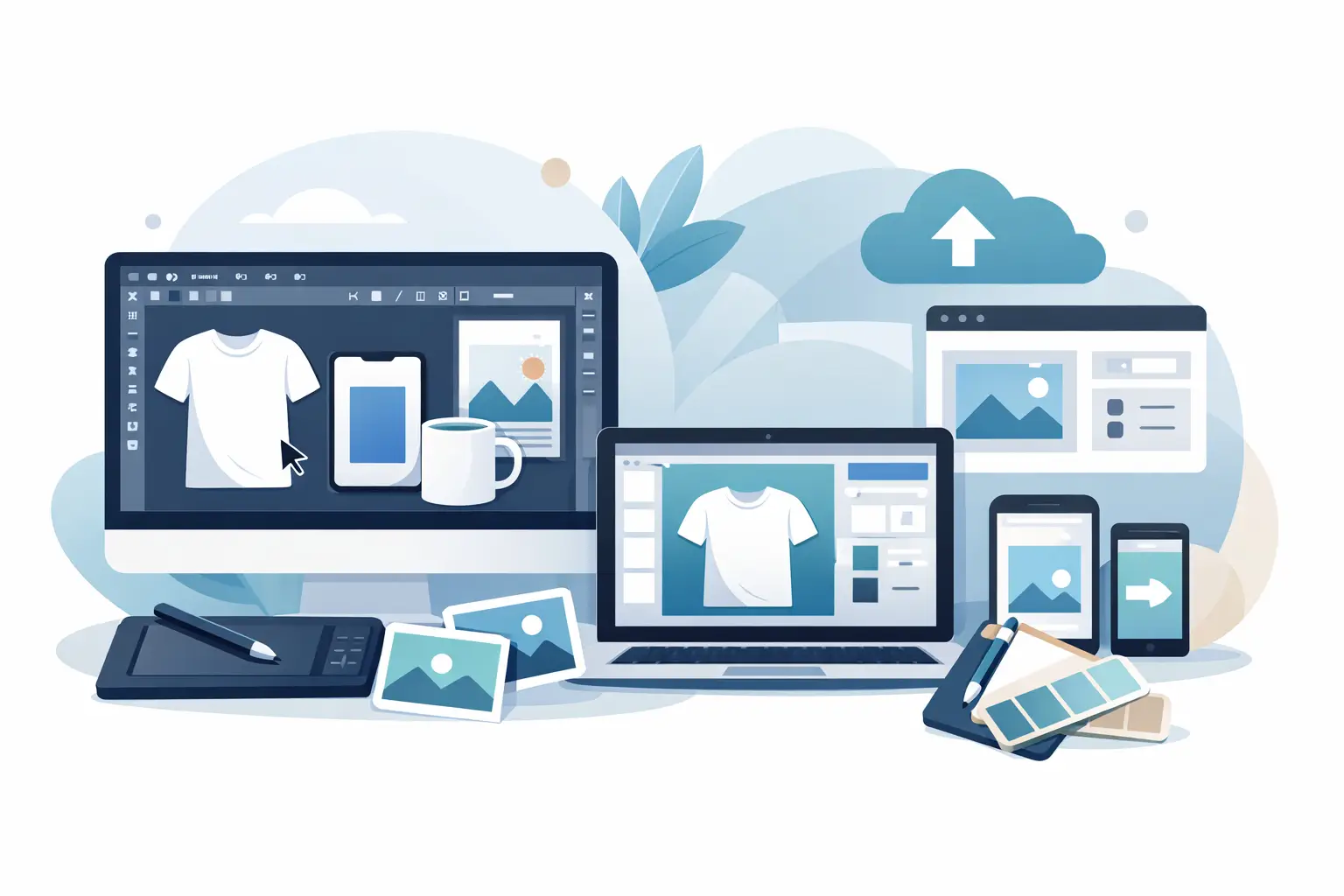
A polished garden flag on a front porch or a tote bag at a farmers market can make a flat design feel ready to buy. But do PSD mockups need Photoshop to create that result? Not always. It depends on the file type included, how much control you need, and how quickly you want to build listing images for your shop.
For many Etsy and print-on-demand sellers, the question is less about software loyalty and more about workflow. You need product images that look credible, fit the season, and are ready before your next listing goes live. Photoshop PSD mockups and Canva-compatible PNG mockups can both help - but they work differently.
Do PSD Mockups Need Photoshop?
A PSD mockup is a Photoshop document, so Photoshop is the intended application for its full functionality. When a mockup uses a smart object, you open that smart object, paste or place your design, save it, and return to the main file. The mockup applies your artwork to the product while preserving realistic perspective, shadows, highlights, fabric texture, and folds.
That means Photoshop is usually the most reliable choice for working with a layered PSD smart-object file exactly as designed. You can adjust layers, turn scene elements on or off when available, refine color, and export high-resolution images for Etsy, Shopify, social media, or ads.
But owning Photoshop is not the only way to create professional listing visuals. Many mockup collections also include Canva-compatible PNG files, which let sellers work in a simpler browser-based workflow. If you are comfortable designing in Canva and need a fast way to present your artwork in a lifestyle setting, PNG mockups may be the better fit.
The key distinction is simple: a PSD gives you layered editing and automated smart-object placement. A PNG gives you a ready-made scene where you add your artwork as an overlay. Both can produce a strong final image when the file is built for the workflow you use.
What Photoshop Smart Objects Actually Do
Smart objects are why PSD mockups remain a favorite for sellers who want the most realistic result with minimal manual editing. They are not just image placeholders. A well-built smart object connects your artwork to the product surface in the scene.
For example, when you place a design into a square throw pillow mockup, the PSD can conform your artwork to the pillow’s shape while its lighting and texture remain visible. On a canvas tote bag, the design sits naturally against the fabric rather than looking like a flat rectangle pasted on top. For a garden flag, it can follow the flag’s perspective in an outdoor scene.
You still need a clean design file, but the mockup handles the photography-style details that are difficult to recreate from scratch. That saves time compared with ordering samples, staging a shoot, waiting for ideal light, and editing every photo yourself.
Photoshop also gives you room to customize. You may want to change the background tone, remove a decorative prop, adjust the product color, or create multiple variations from one scene. Those edits are easier when the file includes organized layers.
When Photoshop Is Worth It
Photoshop makes the most sense if mockups are a regular part of your selling process. It is especially useful when you launch seasonal collections, sell personalized products, or need several listing images for each design.
A smart-object workflow can be faster than manually positioning artwork again and again. Once you understand the basic open, replace, save, and export process, creating a new product image often takes only a few minutes. That speed adds up when you are preparing Christmas porch listings, autumn home decor, wedding gifts, or a new spring collection.
It is also the stronger option when your design includes fine detail. Text, watercolor art, linework, and small personalization areas benefit from precise sizing and placement. You can zoom in, check the edges, and export at the dimensions your marketplace needs.
When You Can Skip Photoshop
You can skip Photoshop when the mockup includes a Canva PNG version and your priority is simplicity. In Canva, you upload the PNG mockup, add your artwork behind or within the designated product area based on the included setup, position it carefully, and download the finished image.
This route works well for sellers who already create their designs in Canva, do not need to edit individual scene layers, and want to avoid learning a more advanced application. It can be an efficient option for straightforward artwork, such as bold quotes, simple illustrations, or repeating patterns.
There is a trade-off. A Canva PNG is generally less flexible than a layered PSD. You may not be able to alter the scene, isolate shadows, or make detailed adjustments to how artwork interacts with the product texture. The quality can still look polished, but you are working with fewer editing controls.
That is not a problem for every shop. A seller with a focused catalog may prefer a consistent set of easy-to-use scenes over deep customization. The best workflow is the one you will actually use to keep your listings current.
Can Other Programs Open PSD Mockups?
Some alternatives can open PSD files, including browser-based editors and other image-editing software. However, opening a PSD is not the same as fully supporting it.
Smart objects, layer effects, adjustment layers, masks, and blend modes can behave differently outside Photoshop. A file may open successfully but lose the automatic placement effect that makes the mockup realistic. Before relying on another editor for a full product launch, test one mockup and inspect the exported image closely.
If the smart object does not update correctly, your design may sit over the fabric texture instead of appearing printed on it. Shadows may disappear, colors may shift, or the product surface may no longer look natural. Those details matter when a shopper is deciding whether your listing feels trustworthy.
If you do not use Photoshop, choose mockups that clearly include a Canva-compatible PNG option rather than assuming every PSD will work the same way in another program.
Choose the File Format Around Your Selling Workflow
The right format is less about which tool is “better” and more about what your shop needs next. Consider how often you publish new designs, how much visual control you want, and whether you need to edit the scene itself.
Use PSD smart-object mockups when you want high-resolution flexibility, realistic product integration, and the ability to tailor layers or colors. They are ideal for sellers who create a larger volume of listings or want a premium, consistent visual style across their storefront.
Use Canva PNG mockups when you want a lower-friction process and already work in Canva. They are practical for quickly turning a finished design into a product image without learning Photoshop’s layer system.
For many sellers, having both is the most useful setup. You can use Canva for fast social posts or simple listing images, then use the PSD version for hero images, seasonal launches, and products where realism needs to do more of the selling.
A Simple Way to Avoid File Frustration
Before buying a mockup, check what is included and match it to the software you already use. Look for clear file labels such as PSD with smart objects and Canva PNG. Also check the product format. A mockup made specifically for a garden flag, square pillow, or canvas tote will look more believable than a generic image stretched to fit.
Keep your original artwork in a high-resolution format, preferably with a transparent background when the design needs to sit on a product surface. Create one test image before producing a full batch. This lets you verify sizing, placement, color, and readability on mobile, where many shoppers will see your listing first.
MockupSmith offers both layered PSD smart-object files and Canva-compatible PNG options so sellers can choose the workflow that fits their shop instead of rebuilding product visuals from scratch.
You do not need Photoshop just to make your designs look sellable. You need a mockup format that fits your tools, protects the realism of the finished scene, and helps you publish your next listing while the season is still in front of you.